Introduction
The Tenancy tab on a property’s detail page gives you a complete view of all tenancy agreements linked to that property. It helps you understand a tenancy’s current status, key dates, financial details and the people involved. This is the best place to review or manage an individual tenancy once it has been created.
To access sales property's tenancy tab, navigate to Lettings > Properties > select a property and enter its detail page by clicking on its address. NOW you can see the Tenancy tab at the top.
Summary
Tenancy Tab Overview
Within the property, the Tenancy tab presents a list of all associated tenancies. Each entry shows the current status, tenancy type, start and end dates, reference number, rent amount and period. You can quickly see whether a tenancy is active, expiring, vacating or archived. If the tenancy is still in draft, administrators may also delete it before it becomes active.
You can also click the + button at top right to add tenancy, reference Add Tenancy for more information about adding tenancy.
Selecting a tenancy from the list opens its full details page. From here, you can switch between different sections, including tenancy details, financial information, documents and member information.
Tenancy Detail Page
Overview
At the top of the page, the Overview section summarises the tenancy at a glance:
Tenancy Status – the current stage of the tenancy
Rent Amount – the agreed rent
This overview helps you quickly understand the tenancy’s current position without opening individual sections.
To edit tenancy, you can use the Edit button at top-right of this section. For more information about editing tenancy, check this link: Edit Tenancy.
When a tenancy is in Expiring status, a dismissible prompt appears above this section showing "Fixed term ends in 90 days. You can Send Expiry Notice(Clicking it opens the email modal) to tenant. If no action is taken, the tenancy will automatically become periodic."
The prompt can be closed and will not appear again, and it is automatically removed once the expiry notice is successfully sent.
Details
The Details section shows the core contractual information entered when the tenancy was created or edited:
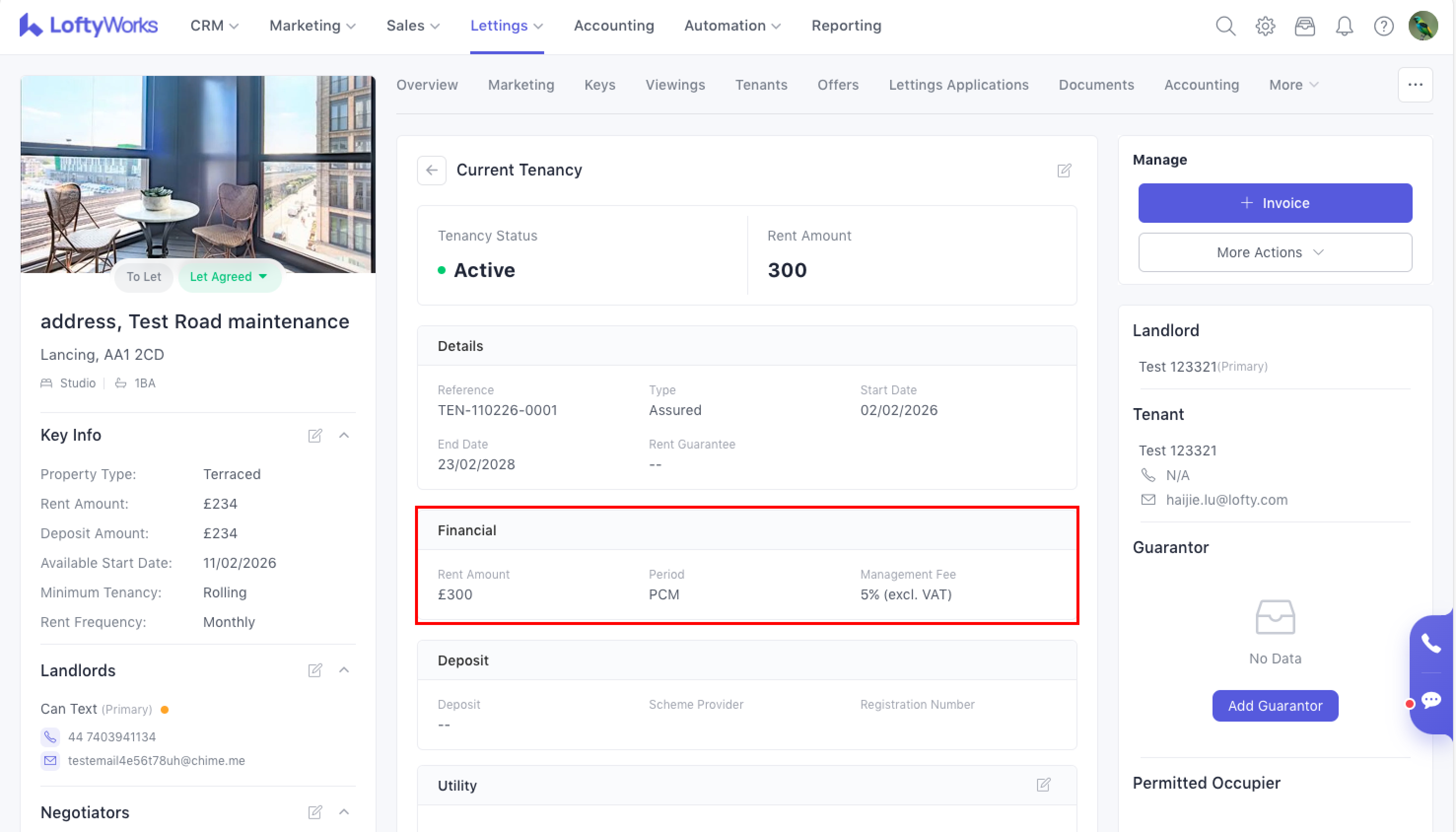
Financial
The Financial section displays how rent and management fees are structured:
Rent Amount
Payment Period – Weekly, Fortnightly, PCM, Quarterly, UK Quarterly, Bi-Annually or Annually
Management Fee – shown either as a percentage or a fixed amount, depending on how it was set up
Deposit
The Deposit section shows information like scheme provider and reference number.
Where data is not available, the value is shown as “—”. Accounting-related fields are populated automatically when data exists.
Utility
If utilities are recorded for the tenancy, they appear in the Utility section. Each utility is shown as a separate row. For each utility, you’ll see:
If data exists, an Edit action is shown. If no data exists, you’ll see Add instead.
When adding or editing utilities:
You can select one or more utility types
Each selected utility requires all fields to be completed
Units are applied automatically based on utility type
Documents
All tenancy-related documents appear in the Document section.
A button at the top-right allows you to upload new documents directly to the tenancy. This helps maintain a complete record of agreements, certificates and compliance materials in one place.
For more information about adding documents, see Document in Tenancy.
Manage Actions
The Manage menu provides shortcuts for key tasks such as:
Creating charges
Creating an invoice
-
More Actions
There are different actions depending on tenancy status and type, reference Tenancy Status & Lifecycle Management for more information.
These tools help you handle operational tasks without leaving the tenancy page.
Move-out Details
The Move-out section appears only when:
The tenancy status is Vacating, Vacated, or Archived
Move-out information has been entered
It shows:
Move-out Date
Final readings for Water, Electricity and Gas (or “—” if missing)
Clicking the section title opens the Move-out Page:
Vacating tenancies can still be edited
Vacated / Archived tenancies are read-only
If the tenancy status changes back to Active or Renewing, the move-out section is immediately hidden and all move-out data is cleared.
Members (People Involved)
On the right-hand side, the Member area lists everyone linked to the tenancy:
Landlord(s)
Tenant(s)
Guarantor(s)
Permitted Occupier(s)
Each person’s card shows their name, contact details and role. You can view all tenants or guarantors if there are multiple. This section helps you quickly see who is responsible for the tenancy and who to contact when needed.
Questions?
If you have any questions about this topic or anything else, please get in touch with our Support Team. You can email us at <Support@LoftyWorks.com> or call us on +44 330 321 3500.
Comments
0 comments
Please sign in to leave a comment.